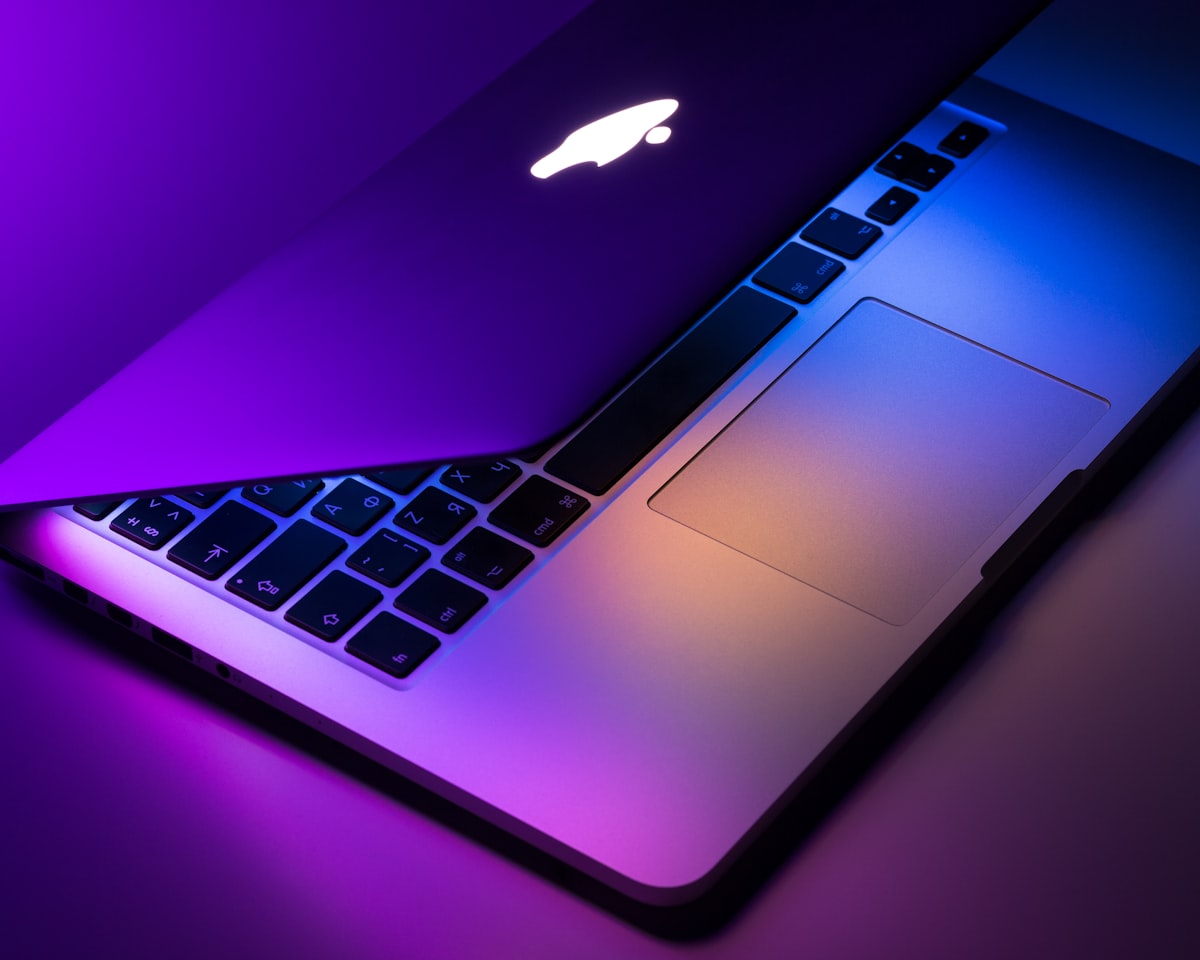
MacBook USB-C Hub Guide 2026: From Basic to Professional Setups
{“@context”:“https://schema.org”,“@type”:“Article”,“headline”:“MacBook USB-C Hub Guide 2026: From Basic to Professional Setups”,“description”:“Finding the right USB-C hub for MacBook Pro or MacBook Air? Our guide covers compatibility, optimal port configurations, and top recommendations.”,“datePublished”:“2026-06-23T00:00:00.000Z”,“dateModified”:“2026-06-23T00:00:00.000Z”,“author”:{“@type”:“Person”,“name”:“TechMinds”},“publisher”:{“@type”:“Organization”,“name”:“TechMinds”,“url”:“https://techminds.cn”},“image”:“https://images.unsplash.com/photo-1517336714731-489689fd1ca8?w=1200&q=80”,“url”:“https://techminds.cn/blog/macbook-usb-c-hub-guide”}window.dataLayer=window.dataLayer||[];function a(){dataLayer.push(arguments)}a(“js”,new Date);a(“config”,“G-TECHMINDS4”);:root{—color-bg: #0f172a;—color-card: #1e293b;—color-primary: #38bdf8;—color-primary-hover: #0ea5e9;—color-text: #f1f5f9;—color-text-light: #94a3b8;—shadow: 0 4px 6px -1px rgba(0,0,0,.3);—shadow-hover: 0 10px 15px -3px rgba(0,0,0,.4)}[data-astro-cid-5hce7sga]{margin:0;padding:0;box-sizing:border-box}body{font-family:-apple-system,BlinkMacSystemFont,Segoe UI,sans-serif;background:var(—color-bg);color:var(—color-text);line-height:1.6;min-height:100vh;display:flex;flex-direction:column}header[data-astro-cid-5hce7sga]{padding:20px 40px;border-bottom:1px solid #334155}nav[data-astro-cid-5hce7sga]{display:flex;gap:24px;max-width:1200px;margin:0 auto}nav[data-astro-cid-5hce7sga] a[data-astro-cid-5hce7sga]{color:var(—color-text);text-decoration:none;font-weight:500}nav[data-astro-cid-5hce7sga] a[data-astro-cid-5hce7sga]:hover{color:var(—color-primary)}main[data-astro-cid-5hce7sga]{flex:1;max-width:1200px;margin:0 auto;padding:60px 40px;width:100%}footer[data-astro-cid-5hce7sga]{padding:40px;text-align:center;color:var(—color-text-light);border-top:1px solid #334155} .prose[data-astro-cid-bvzihdzo]{font-size:1.125rem}.prose[data-astro-cid-bvzihdzo] h2{font-size:1.75rem;margin:2em 0 1em}.prose[data-astro-cid-bvzihdzo] h3{font-size:1.375rem;margin:1.5em 0 .75em}.prose[data-astro-cid-bvzihdzo] p{margin-bottom:1.25em}.prose[data-astro-cid-bvzihdzo] a{color:#38bdf8}.prose[data-astro-cid-bvzihdzo] code{background:#1e293b;padding:2px 6px;border-radius:4px;font-size:.9em}.prose[data-astro-cid-bvzihdzo] pre{background:#1e293b;padding:1.25em;border-radius:8px;overflow-x:auto;margin:1.5em 0}.prose[data-astro-cid-bvzihdzo] pre code{background:none;padding:0}.prose[data-astro-cid-bvzihdzo] ul,.prose[data-astro-cid-bvzihdzo] ol{padding-left:1.5em;margin-bottom:1.25em}.prose[data-astro-cid-bvzihdzo] li{margin-bottom:.5em}.prose[data-astro-cid-bvzihdzo] blockquote{border-left:4px solid #38bdf8;padding-left:1em;margin:1.5em 0;color:#94a3b8} TechMinds Blog Recommends 📚 Tutorials June 23, 2026 MacBookUSB-C HubAppleAccessories Apple’s decision to embrace USB-C across the MacBook lineup was inevitable, but it created a connectivity gap that USB-C hubs must fill. Whether you have a MacBook Air or MacBook Pro, finding the right USB-C hub requires understanding your specific model’s capabilities and your workflow needs. MacBook USB-C Compatibility Basics All modern MacBooks use USB-C with Thunderbolt 4 support, meaning any USB-C hub will work. However, the reverse isn’t true—not every hub can unlock your MacBook’s full potential. The key distinction: USB-C hubs connect to your MacBook’s USB-C ports, but the functionality depends on what those ports actually support. Apple’s migration to Apple Silicon has changed some considerations, but USB-C compatibility remains consistent across generations. MacBook Pro 14” and 16” (M3 Pro/Max) These models demand more power and bandwidth. Your hub needs:
100W USB-C PD minimum for proper charging under load Thunderbolt 4 passthrough for maximum bandwidth utilization Dual 4K or single 6K display support for external monitors
The MacBook Pro 16” especially benefits from high-wattage PD charging. Under heavy workloads—video rendering, code compilation, data analysis—the difference between 60W and 100W charging is noticeable for battery maintenance. MacBook Pro 13” and 14” (M3/Pro) Standard power delivery works well for these models. Look for 60-85W PD support and reliable HDMI 2.0/2.1 output for external displays. The 14-inch MacBook Pro with standard M3 chip has moderate power requirements. A hub with 65-85W PD handles charging adequately during most workflows. MacBook Air M3 The MacBook Air hub needs are simpler. Most 60W PD hubs handle charging adequately. Focus on port selection matching your peripherals rather than maximum power delivery. The Air’s efficient Apple Silicon means less demanding power requirements. A hub that struggles to power a MacBook Pro may fully satisfy Air users. Essential Ports for MacBook Users HDMI Output For MacBook Pro USB-C hub setups driving external displays, HDMI 2.1 support matters significantly. Native resolution for Studio Display or Pro Display XDR works best with certified hubs